back to field notes
// August 10, 2026

Pika Video Prompt Guide: Paste-Ready Templates

Unlock fast, stunning videos with Pika’s ready-to-use templates. Create inspiring clips from text or images in just two minutes!
Pika Video Prompt Guide: Paste-Ready Templates

Pika Video Prompt Guide: Paste-Ready Templates

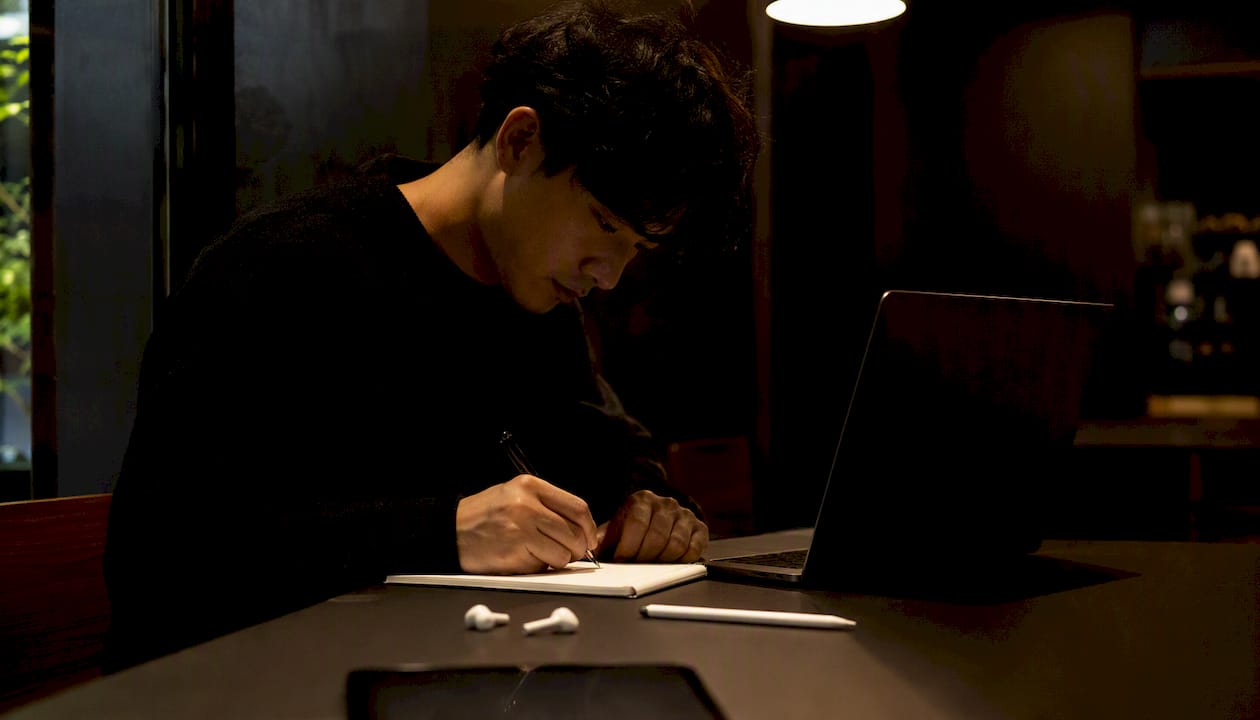
Person writing AI video prompt at desk

Pika Labs generates short AI video clips from text or images, and the fastest way to get a usable result is to paste a structured prompt right now. Here are two you can use immediately:

Text-to-video: A red fox trots through a snowy pine forest at dusk, slow dolly forward, cinematic lighting, film grain -ar 16:9 -motion 2 -fps 24

Image-to-video: [upload your image] Gentle camera pull-back, soft morning light, leaves rustling in the breeze -motion 1 -fps 24 -gs 12

Mini template: [Subject] + [action verb] + [environment] + [camera move] + [lighting/style] + [-ar] + [-motion] + [-fps]

Pro Tip: Keep one main subject per prompt. Pika’s motion parser struggles when you stack multiple characters or competing actions in a single clip, and the output drifts fast.

Key Takeaways

Effective Pika prompting follows a fixed structure: subject, action, environment, camera, style, and inline parameters — and changing one variable at a time is what separates fast iteration from guesswork.

Point Details
One subject per prompt Pika’s motion parser drifts when multiple characters or actions compete in a single clip.
Make motion explicit Use a motion verb and set -motion (1–4, default 1); raise to 2–3 for action, keep at 1 for portraits.
Always set -ar Specify 9:16 for Reels/TikTok, 16:9 for YouTube, 1:1 for feed posts — never leave it at default for social.
Use -neg to exclude List specific visual elements: “blur, text, watermark, extra limbs” — abstract terms like “bad quality” don’t work.
Saimonsays refines prompts The live prompt refinery at saimonsays.ai structures your Pika prompts and applies correct parameters by format.

Table of Contents

How to run your first Pika video prompt

Getting your first clip out takes under two minutes. Follow these steps exactly:

  1. Go to pika.art and sign in. The main interface shows a text input bar at the bottom of the screen.
  2. Choose your mode. Click the camera icon to switch between text-to-video and image-to-video. For image-to-video, upload your still first, then type the motion description.
  3. Paste your prompt into the text bar. Multi-line prompts work; just paste the full block.
  4. Set aspect ratio and duration. Click the settings icon next to the input. For Reels or TikTok, pick 9:16. For YouTube or desktop, pick 16:9. Duration defaults to around 3 seconds; extend to 5 for more motion.
  5. Add inline parameters at the end of your prompt text: -ar 9:16 -motion 2 -fps 24.
  6. Hit Generate. Pika queues the job and returns a clip, typically within seconds for short clips at default settings.

For stylized results, try the Style feature (a paintbrush icon) to apply a visual preset before generating. Pikaffects are pre-built motion effects—such as melting, exploding, and morphing—that you can layer onto image-to-video clips. Sound generation is available as a toggle; Pika adds ambient audio automatically, though the quality varies. For precise audio, record or source sound separately and add it in post.

If faces look distorted on the first run, reduce -motion to 1. Artifacts on text or logos are common; use -neg text, watermark, logo to suppress them.

According to Pika’s official guidance, concise prompts of 1–3 sentences with explicit camera movement produce the most consistent output.

What to write and in what order: the anatomy of a Pika prompt

Pika parses prompts left to right, so structure matters. The recommended formula is:

Subject → Action → Environment → Camera → Lighting/Style → Constraints

Each slot has a job:

  • Subject: One entity. “A woman in a red coat” beats “a woman, a dog, and a city street.”
  • Action: Use a motion verb. “Walks slowly” beats “walking” or “movement.”
  • Environment: Time of day, location, weather. “Rain-slicked Tokyo street at midnight” gives the model a full scene.
  • Camera: Name the move. “Slow dolly forward,” “low-angle tracking shot,” “static wide.”
  • Lighting/Style: “Golden hour,” “neon-lit,” “film grain,” “watercolor illustration.”
  • Constraints: Inline parameters at the end: -ar 16:9 -motion 2 -fps 24 -neg blur, crowd.

Weak → Strong rewrites:

Weak Strong
A cat in a garden A tabby cat stretches on a sun-warmed stone wall in an English garden, slow zoom in, soft afternoon light, shallow depth of field -ar 16:9 -motion 1
Futuristic city Aerial drone shot descending into a neon-lit cyberpunk city at night, rain falling, cinematic color grade -ar 16:9 -motion 3 -fps 24

Close-up of detailed video prompt writing

One main subject, one hero action. That single rule fixes most failed outputs before you generate.

Pika parameters cheat-sheet: defaults, ranges, and when to change them

Pika supports inline parameters that you append directly to your prompt text. Experienced users cite -gs and -motion as the two highest-impact controls for balancing prompt fidelity against creative variation.

Parameter What it controls Range Default When to change
-motion Overall movement intensity 1–4 1 Raise to 2–3 for dynamic action; lower to 1 for subtle animation or portraits
-fps Frames per second 8–24 24 Drop to 8–12 for a stop-motion or lo-fi look; keep at 24 for smooth social clips
-gs Guidance scale (prompt fidelity) 8–24 12 Raise toward 20+ to stick closer to your prompt; lower for more creative drift
-ar Aspect ratio 16:9, 9:16, 1:1, 4:5 16:9 Always set explicitly: 9:16 for Reels/TikTok, 1:1 for feed posts
-neg Negative prompt (exclude elements) Text string None Add “blur, text, watermark, crowd” to suppress common artifacts
-seed Reproducibility Any integer Random Set a fixed seed to regenerate near-identical clips when iterating
-camera Camera movement type zoom, pan, rotate, tilt None Name it explicitly: “zoom in,” “pan left,” “orbit”

Combo pairs that work well together:

  • -motion 3 -fps 24: fluid, high-energy action clips
  • -gs 18 -seed 42: consistent character or product shots across multiple generations
  • -motion 1 -gs 14 -neg blur, grain: clean product reveals with minimal noise

For quick social clips, start with -ar 9:16 -motion 2 -fps 24. For cinematic tests, try -ar 16:9 -motion 2 -gs 16 -fps 24.

On -neg: list specific visual elements to exclude, not abstract concepts. “Blur, watermark, extra limbs, text” works. “Bad quality” does not.

On -seed: once you find a generation you like, note the seed number from the output panel and reuse it. It won’t produce an identical frame, but it keeps the visual style and composition close.

Pika parameters cheat-sheet: defaults, ranges, and when to change them — overview diagram

12 copy-ready Pika prompts by use case

These prompts follow patterns that consistently produce results across cinematic, social, and product formats. Each includes suggested parameters and a one-line annotation.

  • Cinematic scene: A lone astronaut walks across a red Martian desert at sunrise, wide tracking shot, dust particles in the air, epic orchestral mood -ar 16:9 -motion 2 -fps 24 -gs 14Raises -gs slightly to hold the wide composition; lower -motion if dust looks chaotic.

  • Vertical social clip: A barista pours latte art in slow motion, close-up overhead shot, warm café lighting, satisfying loop -ar 9:16 -motion 1 -fps 24Keep -motion low for smooth slow-mo; add -neg blur if the cup edges distort.

  • Product reveal: A sleek black smartwatch rotates on a white pedestal, studio lighting, sharp edges, no background clutter -ar 1:1 -motion 1 -fps 24 -neg shadow artifacts, textUse 1:1 for feed; add -gs 18 to keep the product shape accurate.

  • Image-to-video motion: [upload portrait photo] Subject's hair blows gently in the wind, soft bokeh background, subtle camera drift left -motion 1 -fps 24 -gs 12Tom’s Guide testing found raising motion to 3 and consistency to around 19 improved realistic movement on stills.

  • Pikaffect effect: [upload image of a building] The structure slowly melts into golden liquid, Pikaffect melt, dramatic lighting -ar 16:9 -motion 3Pikaffects override some camera controls; don’t stack multiple effects in one prompt.

  • Character lip-sync: A cartoon robot character speaks directly to camera, expressive mouth movement, bright studio background -ar 9:16 -motion 2 -fps 24 -neg extra fingers, distorted faceFaces drift at -motion 3+; keep it at 2 and use -neg distorted face as a safety net.

  • Loop/GIF style: Neon sign flickering in a rainy alley, seamless loop, cyberpunk color palette -ar 1:1 -motion 1 -fps 12Lower fps reinforces the lo-fi loop aesthetic; add -seed [number] to regenerate consistent frames.

  • Wildlife/action: A cheetah sprints across the African savanna, low-angle tracking shot, golden hour light, dust trail -ar 16:9 -motion 4 -fps 24Max -motion for fast animals; expect some leg blur at high speed — use -neg blur to reduce it.

  • Gallery/animation: Watercolor paintings of flowers bloom and fade in sequence, soft brush strokes, pastel palette, gentle pan right -ar 16:9 -motion 1 -fps 24 -gs 10Lower -gs lets the watercolor style breathe; higher values make it look photographic.

  • Interstellar/space: A spacecraft drifts past a ringed gas giant, stars streaking, deep space silence, slow zoom out -ar 16:9 -motion 2 -fps 24 -gs 16Raise -gs to 16+ to keep planet geometry intact.

  • Meme/comedy: A corgi in a business suit sits at a desk looking stressed, office setting, fluorescent lighting, deadpan zoom in -ar 16:9 -motion 1 -fps 24Low motion keeps the comedic timing flat and readable.

  • Tutorial/explainer: Animated infographic showing data flowing through a network diagram, clean white background, smooth transitions, professional style -ar 16:9 -motion 2 -fps 24 -neg clutter, text errorsAdd -neg text errors since Pika renders text inconsistently; overlay real text in post.

Paste multi-line prompts as a single continuous block in the input bar. Place -neg and -seed at the very end of the string, after all other parameters.

How to refine prompts: the generate → review → tweak workflow

The fastest path to a good clip is not a perfect first prompt. It’s a fast loop.

  • Generate 3–5 variations of the same prompt before changing anything. Pika has inherent randomness; one of those variations often nails the motion or composition you wanted.
  • Compare side-by-side. Look at motion quality, subject consistency, and color accuracy before deciding what to fix.
  • Change one variable at a time. If the motion is wrong, adjust only -motion. If the style drifts, adjust only -gs. Changing two parameters at once makes it impossible to know which fix worked.

Common failure modes and fixes:

  • Motion blur or jitter: Lower -motion by 1. If still blurry, add -neg motion blur and drop -fps to 12.
  • Identity drift (face or object changes mid-clip): Raise -gs toward 18–20 and add -seed [number] to lock the generation closer to your reference.
  • Wrong colors: Add explicit color terms to the prompt (“deep cobalt blue walls, warm amber light”) and raise -gs.
  • Unwanted text or logos: Add text, watermark, logo, subtitles to -neg.
  • Extraneous characters or objects: Rewrite the subject slot to be more specific and add the unwanted element to -neg.

Refinement order: fix motion/camera first, then style, then -gs, then -neg. This sequence isolates the most impactful variables before you reach the fine-tuning controls.

Use -seed once you find a generation you want to build on. It keeps the visual fingerprint stable across tweaks.

Execution details: render times, audio, and export settings

Render times depend on clip length and motion strength. Short clips (3–5 seconds) at default settings typically return within seconds on Pika’s standard queue. Higher -motion values and longer durations add processing time. Resolution also affects speed; Pika’s default output resolution is sufficient for social platforms without adjustment.

  1. For Reels and TikTok: use -ar 9:16, duration 3–5 seconds, -motion 2. Export as MP4 directly from Pika’s download button.
  2. For YouTube Shorts: same as above, but extend to 5–8 seconds if the platform allows.
  3. For feed posts (square): use -ar 1:1, -motion 1, duration 3 seconds.
  4. For loops: set -fps 12 and keep duration short (3 seconds). The lower frame rate makes seamless looping easier to achieve in post.

Sound: Pika’s built-in sound effect generation adds ambient audio automatically. The results work for quick drafts but often need replacement for final content. For voiceover or precise sound design, tools like ElevenLabs (for AI voice) or Cassette AI (for music and ambient sound) integrate cleanly with exported Pika clips.

Batch tips: run all your variations with a consistent -seed value, name files with the parameter values in the filename (e.g., fox_motion2_gs14_seed42.mp4), and keep a plain-text parameter log. When a variation works, you can reconstruct it exactly.

When Pika fits and when it doesn’t

Pika is the right tool when speed and stylized output matter more than photorealism. For social-first assets, rapid concept tests, and short product demos, it delivers a usable clip faster than any traditional production pipeline. The range of prompt patterns it handles well — cinematic scenes, Pikaffects, image-to-video animation, product reveals, looping clips — covers most social content needs.

Where Pika falls short: brand-accurate photography, long-form continuity, and anything requiring consistent character identity across more than a few seconds. If a client needs a 60-second brand film where the spokesperson looks the same in every shot, Pika is a prototyping tool, not the final deliverable.

The practical heuristic: use Pika to concept and iterate, then decide whether the output is good enough to publish or whether it needs a full production pass. Most social content clears that bar on the first or second iteration. Most brand-sensitive, long-form, or rights-intensive work does not.

One scenario that comes up often: a creator has a product photo and needs a 5-second animated clip for a paid ad. Pika’s image-to-video mode, with -motion 1 -gs 18, produces a clean, publishable result in under a minute. That’s a production step that used to take hours.

Saimonsays speeds up your Pika workflow

Writing tight Pika prompts gets faster when you have a structured tool behind you. Saimonsays gives you a live prompt refinery, a curated prompt library organized by model and use case, and model-specific technique guides that map directly to Pika’s parameter logic.

Saimonsays

The generate → review → tweak loop described above is exactly where Saimonsays plugs in. Paste a rough idea, and the refinery returns a structured prompt with parameters already set for your target format. The curated library covers cinematic, social, product, and Pikaffect patterns so you’re not starting from scratch each session. For teams running repeated Pika campaigns, the business workflow consulting identifies which prompt patterns to standardize and which settings to lock per format.

One practical note: when uploading images to Pika for image-to-video, avoid using photos that contain identifiable people without their consent. Saimonsays’s coaching covers responsible AI usage alongside prompt craft.

Ready to cut your iteration time? Visit Saimonsays and run your first prompt through the refinery.

Sources

These are the core references used to build this guide:

tags
pika prompt tipsvideo prompt ideaspika video tutorialhow to use pikabest video prompt techniquespika video content creationpika video prompt guidepika prompt strategiespika video promptspika prompting
quick nudge
Getting value from sAimonSays.Ai? Suggested donation is $20. Anything helps.
install as app
Add sAimonSays.Ai to your home screen for a full-screen, app-like experience.